Android Download
To Enjoy The Ultimate Gaming Experience!
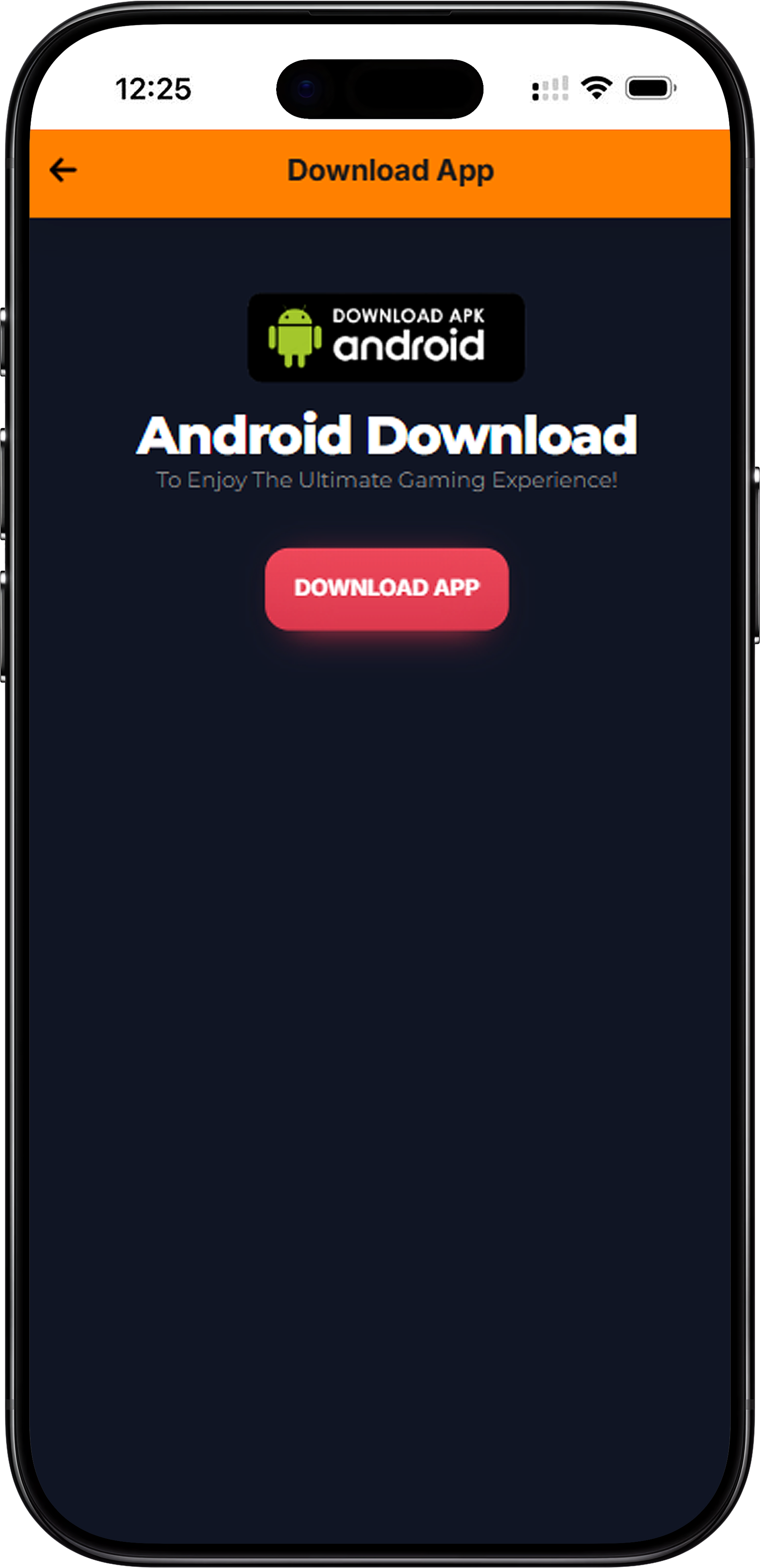
Download the KUATBOX Android APK
KUATBOX offers a dedicated Android APK for a smooth and optimised gaming experience on your smartphone or tablet. Simply click the Download App button on this page to get started. Once downloaded, follow the steps below to complete the installation.
Step 1: Tap the Download App Button
On this page, tap the Download App button. You will be redirected to the KUATBOX Android download page. Tap the button again to begin downloading the APK file to your device.
Step 2: Allow Installation from Unknown Sources
Before installing, go to your device Settings, then Security or Privacy, and enable Install from Unknown Sources or Allow from this Source. This allows your device to install apps outside of the Google Play Store.
Step 3: Install the APK
Locate the downloaded APK file in your Downloads folder and tap on it to begin installation. Follow the on-screen prompts and tap Install to complete the process. Once installed, the KUATBOX icon will appear on your home screen.
Alternative: Add KUATBOX to Your Android Home Screen via Chrome
If you prefer not to install an APK, you can add KUATBOX to your Android home screen using Chrome. Open Chrome on your Android device and visit the KUATBOX site. Tap the three-dot menu in the top-right corner and select Add to Home Screen. Enter a name such as KUATBOX and confirm. The icon will appear on your home screen just like a regular app. Note: If Chrome shows Install App instead of Add to Home Screen, try switching to Airplane Mode and refreshing the page, then reconnect to the internet and try again.
How to Install KUATBOX on iOS – iPhone & iPad
Step 1: Open Safari on Your iPhone or iPad
This method only works using Safari. Open Safari on your iOS device. The Add to Home Screen feature is not available in Chrome or other browsers on iOS, so make sure you are using Safari before proceeding.
Step 2: Visit the KUATBOX Site
Navigate to the KUATBOX website in Safari. Wait for the page to fully load before proceeding to the next step.
Step 3: Tap the Share Button
At the bottom of your screen, tap the Share button, which appears as a square with an upward-pointing arrow. A menu will slide up from the bottom of the screen with several sharing options.
Step 4: Select Add to Home Screen
Scroll through the options and tap Add to Home Screen. Customise the name to KUATBOX if desired, then tap Add in the top-right corner. The KUATBOX icon will now appear on your iOS home screen, giving you quick one-tap access anytime.
How to Install KUATBOX on Desktop – Windows & macOS
Windows: Create a KUATBOX Shortcut Using Chrome
Open Google Chrome and visit the KUATBOX website. Click the three-dot menu in the top-right corner, go to More Tools, and select Create Shortcut. Name the shortcut KUATBOX, check Open as Window if you prefer an app-like experience, and click Confirm. A shortcut will appear on your Windows Desktop for quick access.
Windows: Install KUATBOX as an App Using Microsoft Edge
Open Microsoft Edge and visit the KUATBOX website. Click the three-dot menu, navigate to Apps, and select Install This Site as an App. KUATBOX will open in its own window like a native application, and you can pin it to your Desktop or Start Menu for convenience.
Windows: Drag & Drop Shortcut Method
Open Chrome, Edge, or Firefox and go to the KUATBOX website. Click and drag the lock icon from the address bar directly onto your Desktop. This will instantly create a clickable shortcut that opens KUATBOX in your default browser with a single click.
Windows: Create Shortcut Manually
Right-click on your Desktop and select New, then Shortcut. Paste the KUATBOX website URL into the location field, click Next, name it KUATBOX, and click Finish. The shortcut will appear on your Desktop and open directly in your default browser.
macOS: Add KUATBOX Shortcut Using Safari
Open Safari on your Mac and visit the KUATBOX website. Click and drag the URL or the lock icon from the address bar directly to your Desktop. This creates a .webloc file that you can double-click at any time to open KUATBOX instantly in Safari.
macOS: Create a KUATBOX Shortcut Using Chrome
Open Google Chrome on your Mac and visit the KUATBOX website. Click the three-dot menu, go to More Tools, and select Create Shortcut. Name it KUATBOX and confirm. A clickable icon will appear on your Desktop for fast and easy access.
macOS: Customise Your KUATBOX Shortcut Icon
To personalise your shortcut on macOS, right-click the shortcut file and select Get Info. Copy a custom image to your clipboard and paste it onto the icon preview in the top-left corner of the Get Info window. Your KUATBOX shortcut will now display your chosen custom icon on the Desktop.
Why Download KUATBOX for the Best Gaming Experience
Faster Access, Anytime & Anywhere
Having KUATBOX installed directly on your device means you can jump into your favourite games in just one tap or click. No need to open a browser and type in a URL every time — your games are always just a tap away.
Full Mobile & Desktop Optimisation
Whether you are on Android, iPhone, Windows, or macOS, KUATBOX delivers a seamless and fully optimised experience across all devices and screen sizes. Enjoy smooth gameplay, fast loading times, and crisp visuals no matter what device you use.
Stay Updated with the Latest Promotions
When you access KUATBOX directly from your home screen or desktop shortcut, you are always a step ahead when it comes to exclusive promotions, daily bonuses, and new game releases. Never miss a reward again.
Get KUATBOX on Your Device Right Now
Download KUATBOX today and enjoy a premium online gaming experience on Android, iPhone, or your desktop. Setup takes less than 2 minutes and gives you instant access to hundreds of games, daily bonuses, and exciting promotions.
Download KUATBOX Now